 Kneedeck
Help
For Kneedeck 0.91.0.
A question? Ask it on the Kneedeck Discord.
Installing Kneedeck
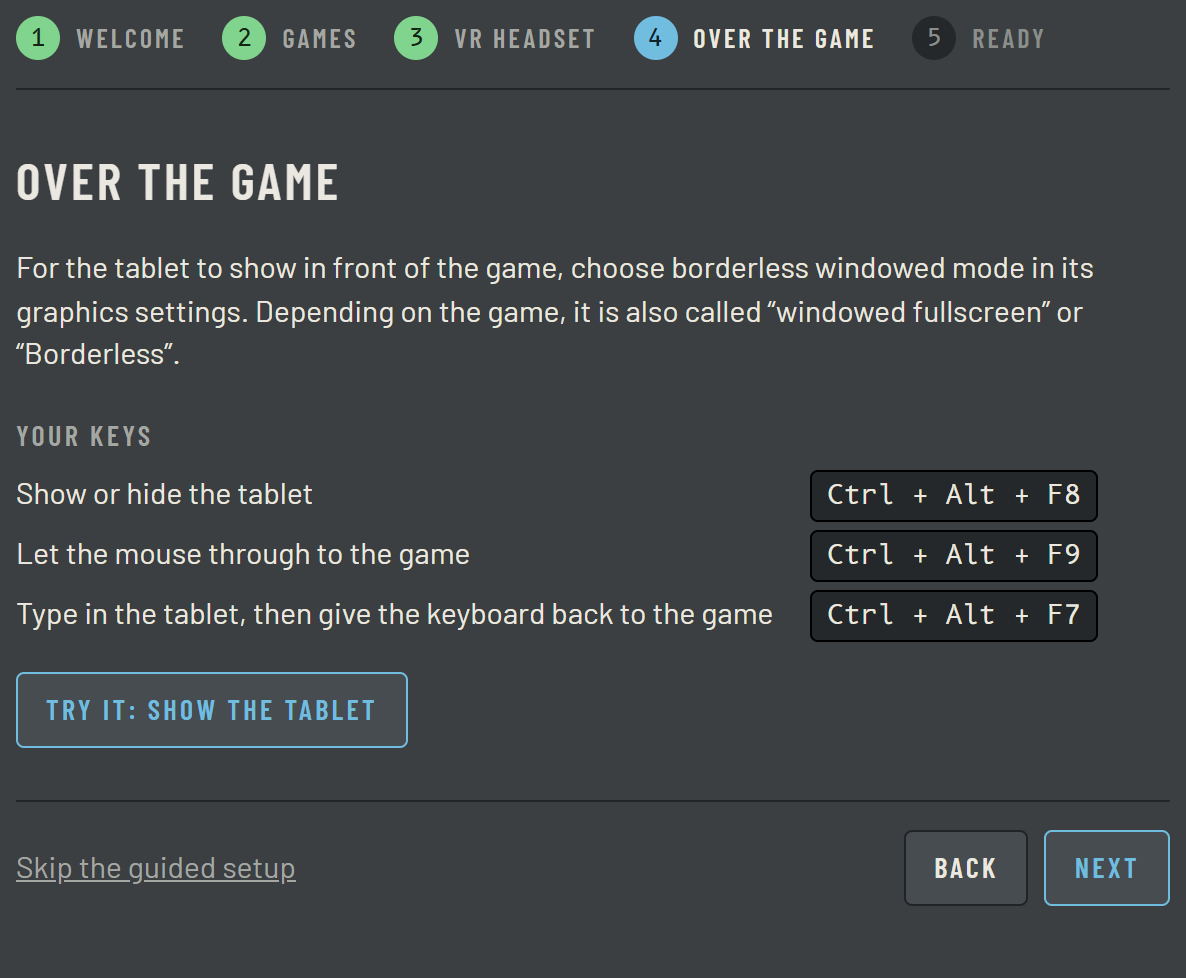
At the first start, the guided setup takes you step by step. You start it again whenever you like in Settings, Guided setup.
- The steps: the language, your games, your VR headset and the tablet over the game.
- Your keys: those that show the tablet, let the mouse through to the game or let you type in the tablet.
- Try it: shows the tablet at once, over your windows.
- Skip the guided setup: closes it; everything can be set later too.
The tablet over the game
For the tablet to show in front of the game, choose the "borderless window" mode in its graphics settings.
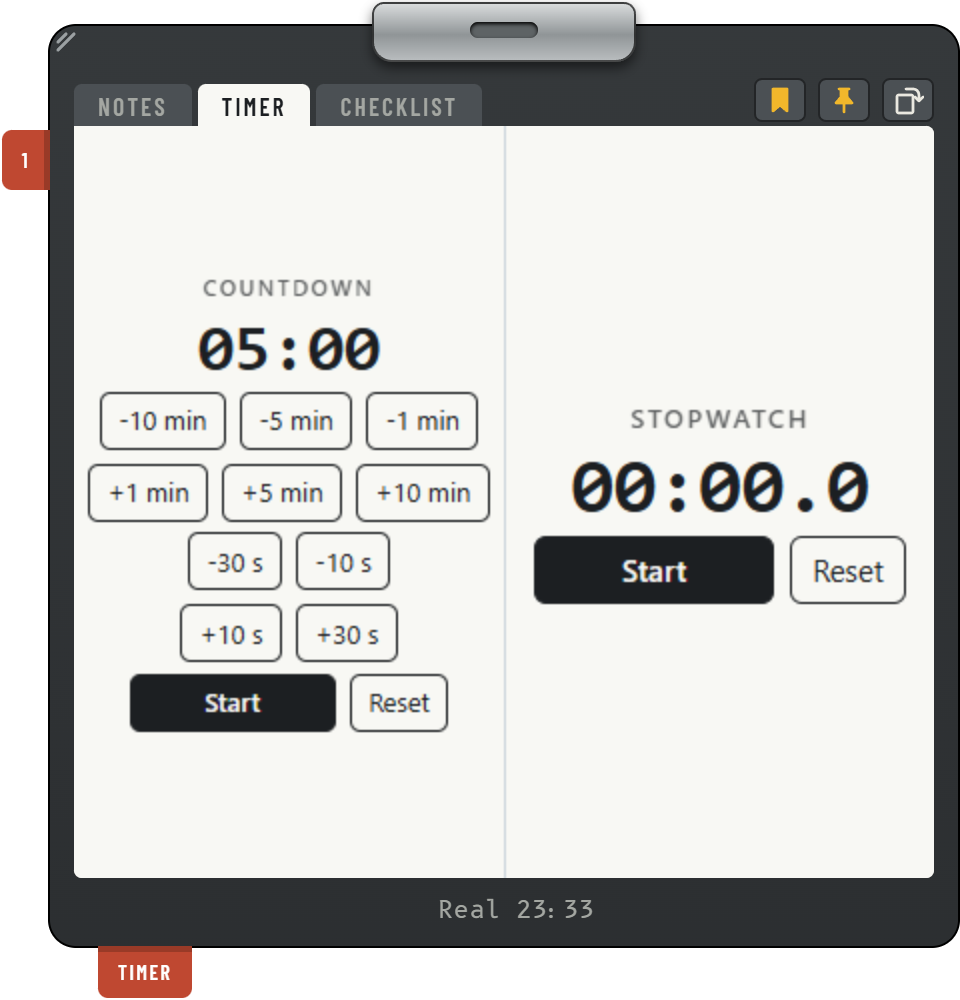
- Clip: drag it to move the tablet.
- Grip: drag it to change the tablet's height or width; the profile keeps the shape you chose.
- Tabs: touch a tab to show its page, slide it to move it.
- Bookmark the page: puts a bookmark on the page shown.
- Pin the page: hangs the page shown under the tablet.
- Turn the tab: shows it in portrait or landscape.
- Bookmarks: they stick out on the side. Touch a bookmark to go back to its page, hold it to change its colour or remove it.
- Pins: they hang under the tablet. Touch a pin to show its page, hold it to change its colour or remove it.
Your keys to start with: Ctrl+Alt+F8 shows or hides the tablet, Ctrl+Alt+F9 lets the mouse through to the game, Ctrl+Alt+F7 lets you type in the tablet, then gives the keyboard back to the game. You change them in Controls, where you can also give them a button of your controller.

The top bar
At the top of Kneedeck's window, the lights tell where the game, the tablet, the mouse and the keyboard stand.
- Discord: opens the Kneedeck Discord.
- Bug or idea: report a bug or suggest an idea.
- Game: the game running, when Kneedeck sees one.
- Tablet: lit while the tablet shows; a click shows or hides it.
- Mouse: lit while the mouse goes to the game; a click gives it to the tablet or the game.
- Keyboard: lit while you type in the tablet.
- Stylus: "selects" or "draws"; while you draw, a click goes back to the pointer.
- Phone: lit while a paired phone has the tablet open.
- VR headset: lit while the tablet shows in the VR headset.
- Update: lights up when a new version is ready; a click installs it.
- Version: opens this version's news.
Profiles and games
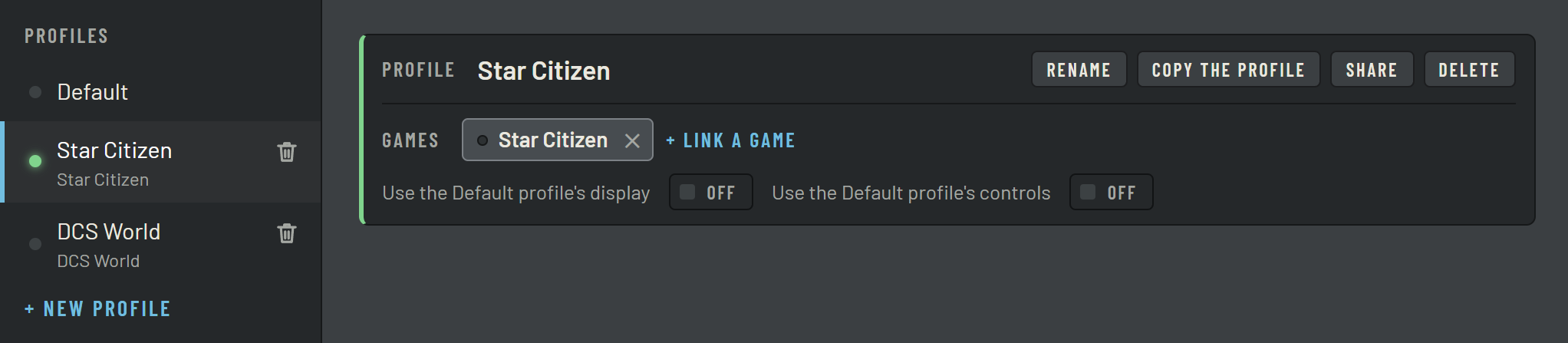
A profile keeps its tabs, its display and its controls. When a game starts, the tablet switches to its profile.
- Profiles: touch a profile to show it on the tablet; the green dot marks the one shown.
- Delete: the bin removes the profile with its tabs, notes and drawings; Kneedeck asks you first. Default cannot be deleted.
- New profile: type a name, then "Create"; you link a game to it afterwards.
- Games: the games that show this profile when they start.
- Link a game: choose a game from the list, or the game's program.
- Copy the profile: makes the same profile, with its tabs, its notes and its drawings.
- Use the Default profile's display: this profile takes Default's display; the same for the controls.
Tabs
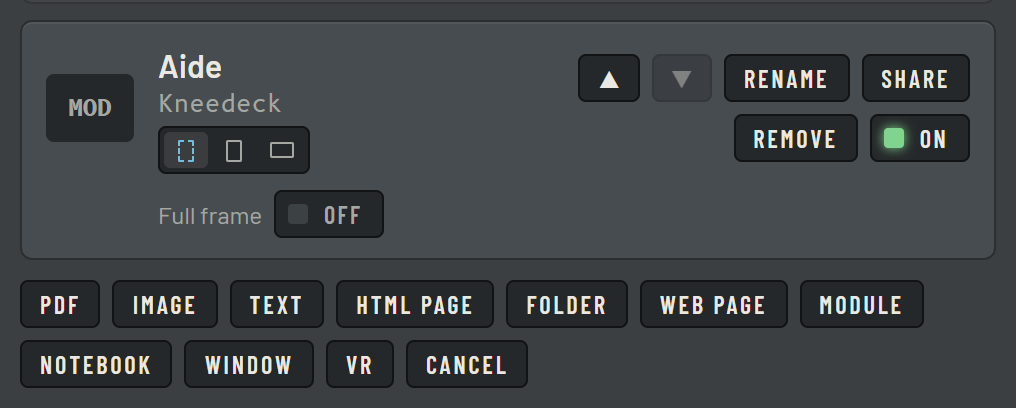
The Tabs screen shows the tabs of the chosen profile, in the tablet's order.
- Add a tab: a PDF, a picture, a text, an HTML page, a folder, a web page, a module, a notebook, another program's window, or the VR tab. DCS, Flight Simulator, and the Checklist with the lists of your games, are picked in "Module".
- On: a tab turned off stays here without showing on the tablet.
- Orientation: as the tablet, portrait or landscape.
- Full frame: the page takes the whole tablet; the tabs come back when the mouse goes to the top, the foot when it goes to the bottom.
- Up, down: moves the tab on the tablet.
Under the tabs, the Bookmarks frame lists the profile's bookmarks; it shows only with a bookmark. A site can also offer you its page as a tab, with an "Add to Kneedeck" link: Kneedeck asks you which profile to put it in.
A web page has settings of its own too: the page's width, automatic or fixed, "Fit to the tablet" for it to show whole, the name taken from the page, and drawing on the page.
A folder has settings of its own too: "Also read the subfolders", and "In DCS, only the aircraft's folder", which in DCS shows only the subfolder named as DCS names the aircraft you are in (F-16C_50, M-2000C).
Drawing on a page
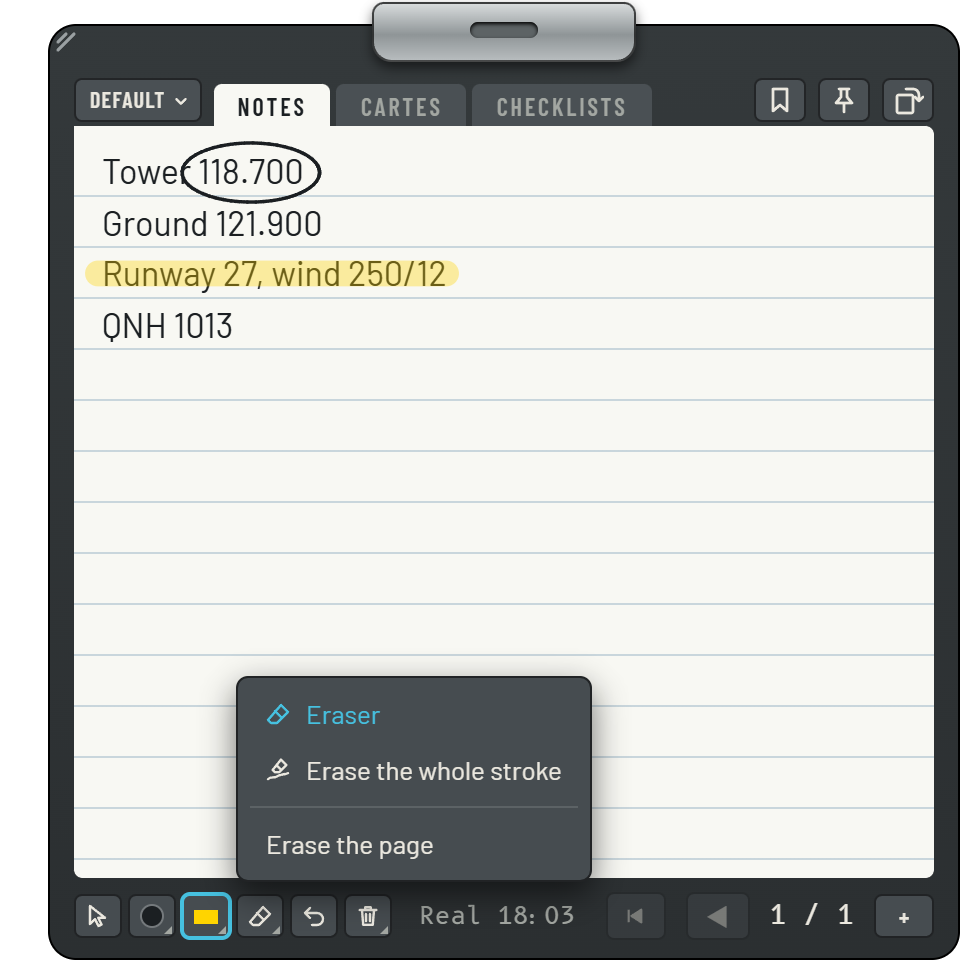
The tools are under the tablet's page.
- Pointer: clicks links and types in the page, without drawing.
- Pencil: writes and draws. Held, it lets you pick its colour and thickness.
- Highlighter: highlights. Held, it lets you pick its thickness.
- Eraser: erases what it touches. Held, it offers "Erase the whole stroke" and "Erase the page".
- Undo: undoes the last change.
- Bin: in notes and notebooks, deletes the page shown, after asking if something is drawn on it. Held, or in the other tabs, it offers "Erase the page", "Erase the whole tab" and "Erase all tabs".
With a pen, the other end erases, and so does its button while you press it. With the pointer, it clicks in web pages and modules without moving the game's mouse.
You draw on notes, notebooks, PDFs, pictures and texts, and on a web page when "Draw on the page" is on in Tabs.
The graphics tablet
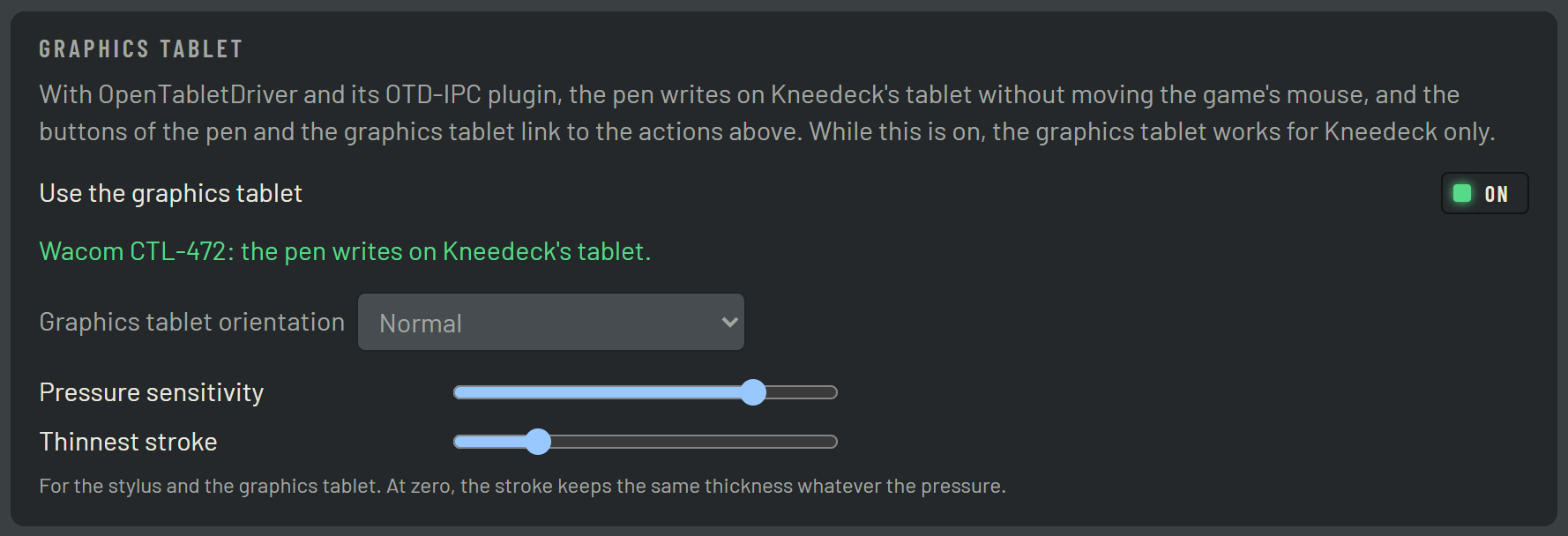
With a graphics tablet, the pen writes and draws on Kneedeck's tablet without moving the game's mouse. Pressure sets how thick the stroke is, and the buttons of the pen and the tablet do the actions of Controls. Its settings are in Controls.
- Use the graphics tablet: while it is on, the graphics tablet works for Kneedeck alone.
- Status: your tablet's name when OpenTabletDriver sees it; otherwise, what is missing.
- Graphics tablet orientation: if it lies turned a quarter or upside down.
- Pressure sensitivity: how much pressure thickens the stroke; at zero, the stroke keeps the same thickness.
- Thinnest stroke: how thick the stroke is when you barely press.
To install it, plug the tablet in by USB: OpenTabletDriver does not handle Bluetooth.
- Uninstall the tablet's own driver (Wacom, Huion, XP-Pen or other) in Windows Settings, Apps. The TabletDriverCleanup tool checks that nothing of it is left.
- Install OpenTabletDriver from opentabletdriver.net, then start it.
- In its Plugins menu, open the Plugin Manager, pick "OpenKneeboard OTD-IPC" and click Install. Close the window.
- At the bottom left, pick your tablet. Go to the Filters tab, pick OpenKneeboard and tick "Enable OpenKneeboard (OTD-IPC)".
- Click Save, then Apply. Without Save, the plugin is not loaded the next time it starts.
- In Kneedeck, Controls screen, turn on "Use the graphics tablet".
- OpenTabletDriver must stay running while you play: start it with Windows. Without it, the pen does nothing.
Controls
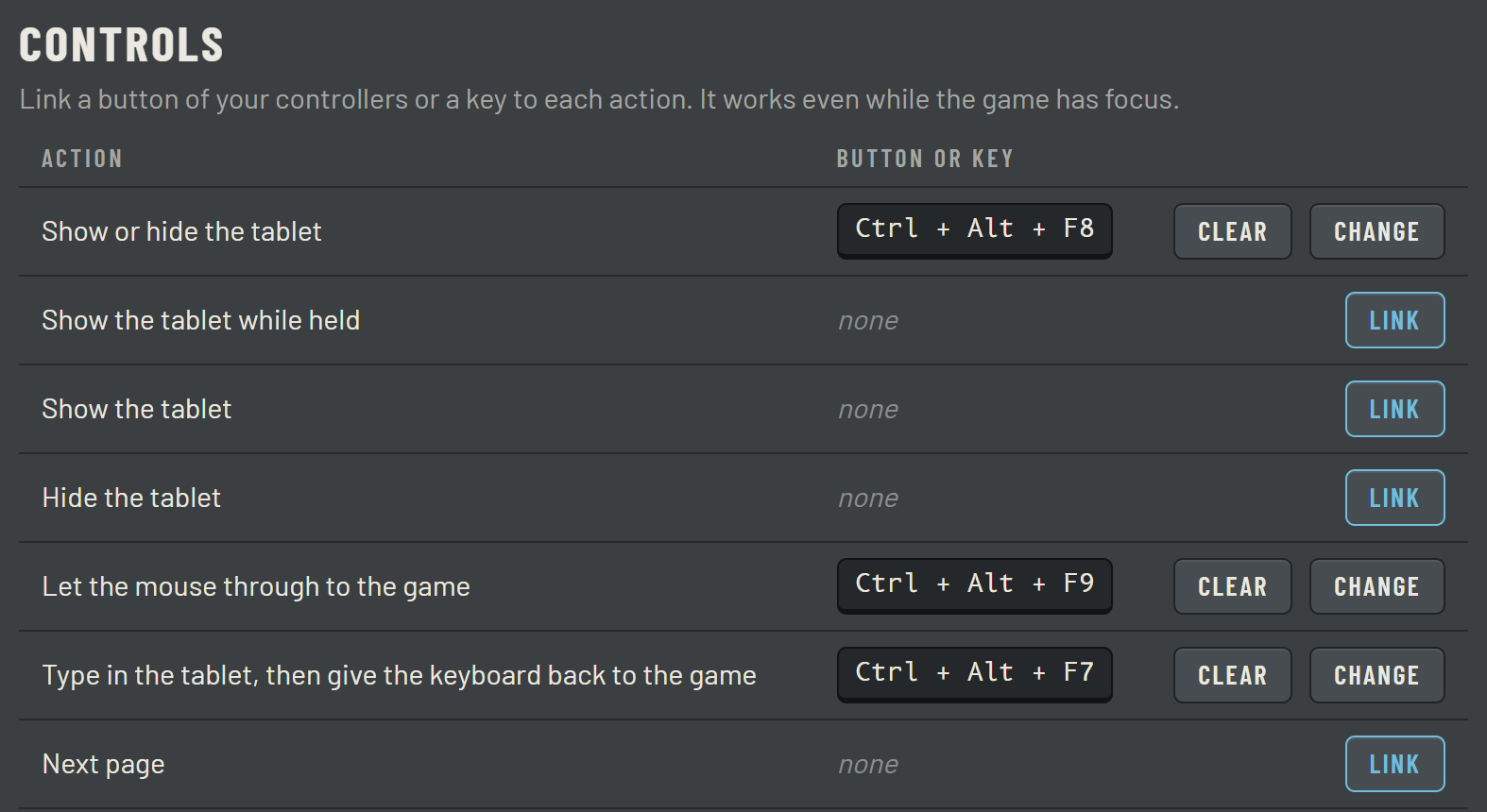
Link a button of your controllers or a key to each action. It works even while the game has focus.
- Actions: show the tablet, let the mouse through to the game, turn pages, erase, place the tablet in VR, and more.
- Button or key: the one that does the action. Two buttons pressed together can do an action of their own.
- Change: then press the button or key you want; Clear removes the link.
- Link: for an action that has no button or key yet.
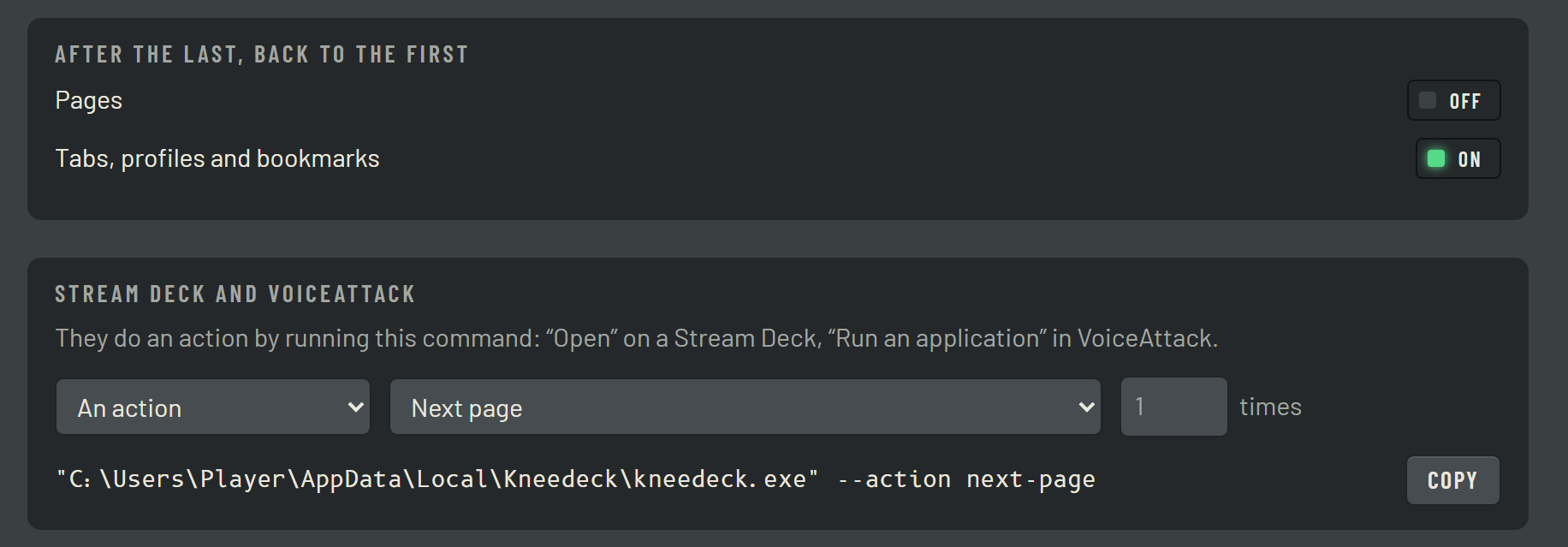
Stream Deck and VoiceAttack
Further down the Controls screen.
- After the last, back to the first: for pages, and for tabs, profiles and bookmarks: after the last, "next" goes back to the first.
- Stream Deck and VoiceAttack: choose an action: Kneedeck writes the command to copy into "Open" on a Stream Deck, or "Run an application" in VoiceAttack.
Display
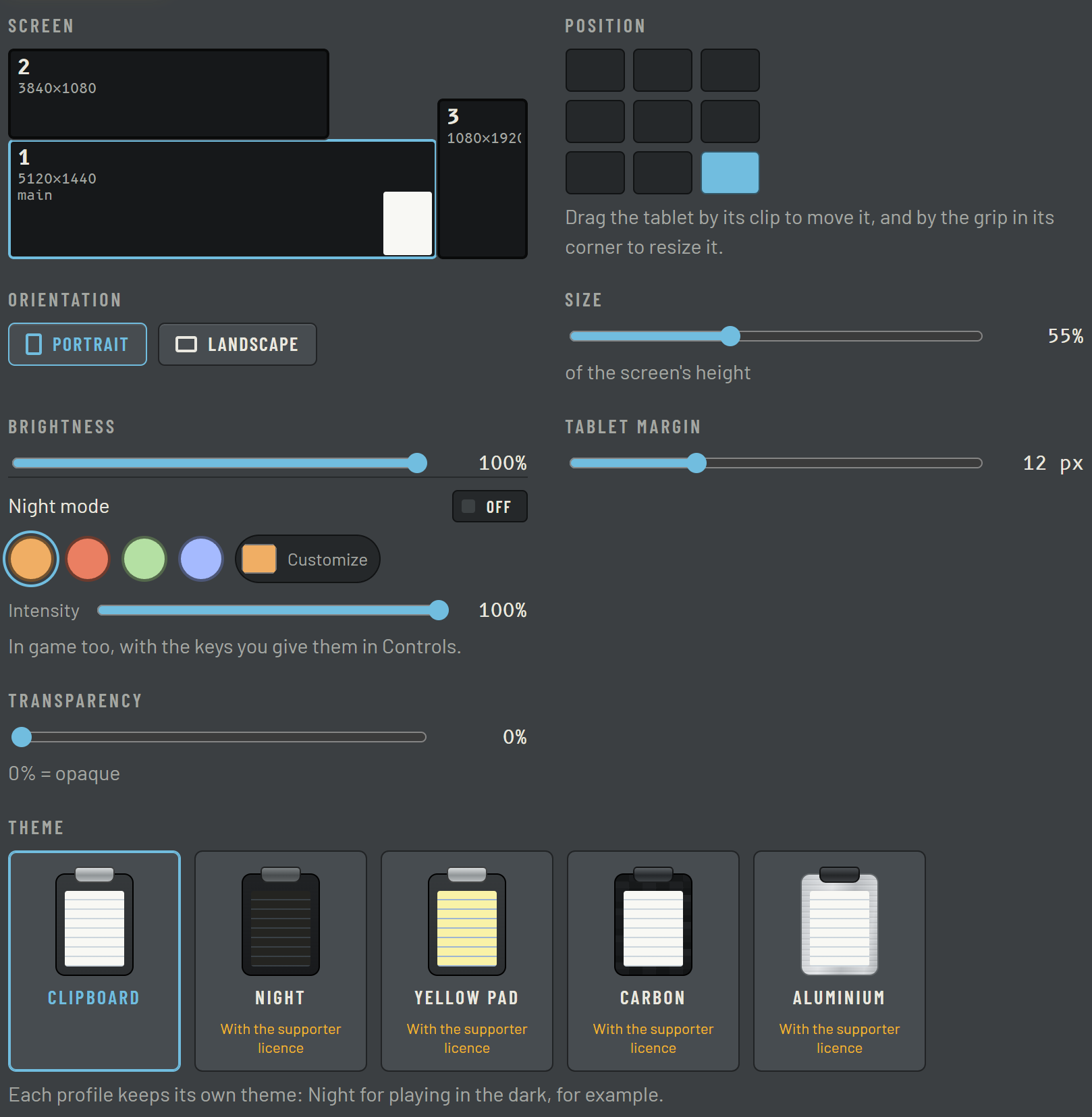
Each profile has its own display, unless it uses the Default profile's.
- Screen: the one the tablet shows on.
- Position: a corner or an edge of the screen; you can also drag the tablet by its clip.
- Orientation: portrait or landscape.
- Size: the tablet's height, as a share of the screen's height.
- Brightness: so as not to be dazzled.
- Tablet margin: the room between the tablet's frame and the page.
- Night mode: the switch turns it on; the colour and the intensity set it, "Customize" for your own colour.
- Transparency: the game shows through the tablet.
- Theme: Clipboard, Night, Yellow pad, Carbon and Aluminium; all but Clipboard are available with the supporter licence.
Further down, after the In VR part: "Let the mouse through to the game", "Show the time" at the tablet's foot, "Streamer mode", which opens the tablet in a window to stream, and "Reset the settings", which puts the profile's display back as it was at first.
In VR
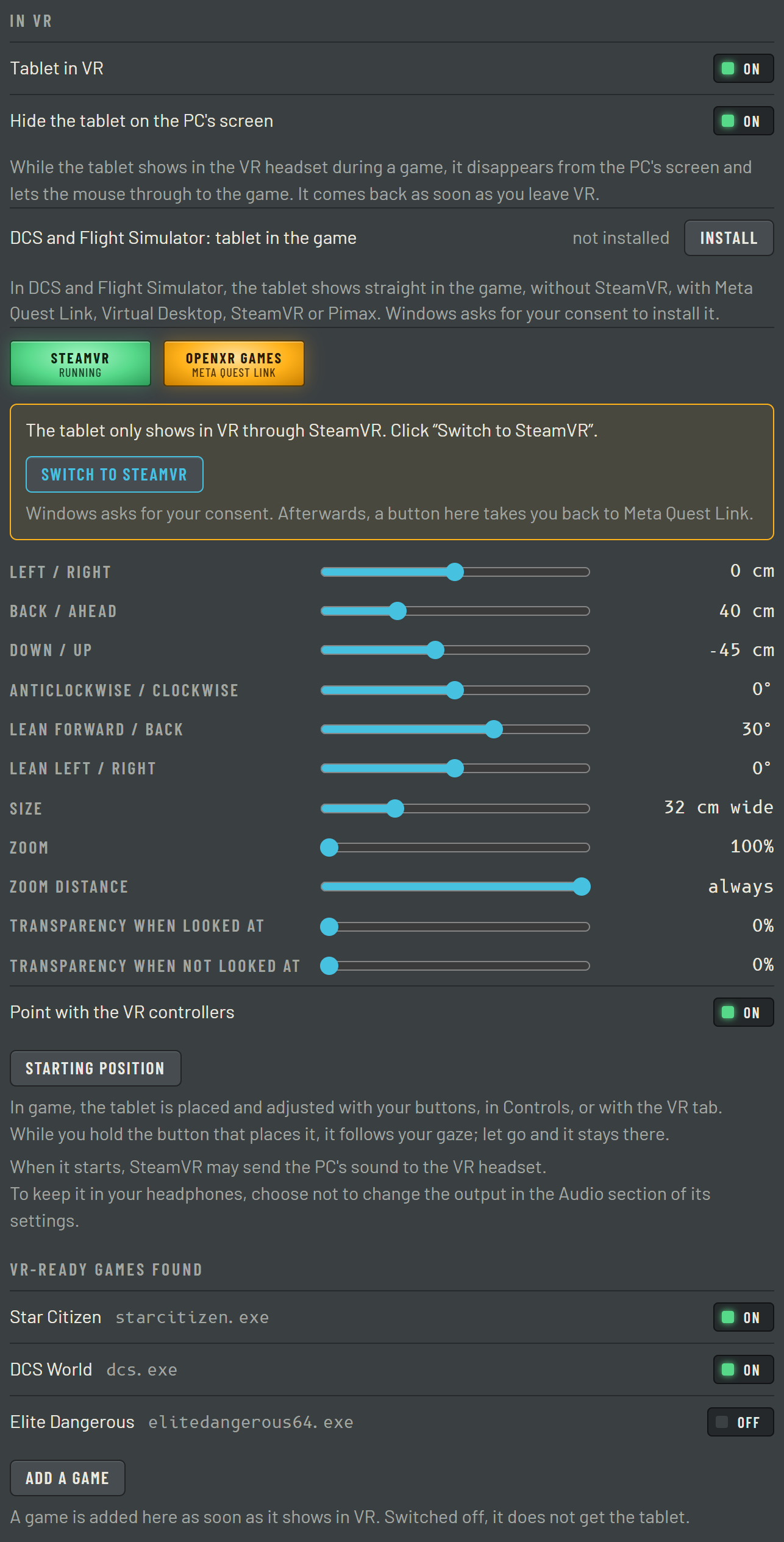
The tablet shows in the VR headset through SteamVR, and in DCS and Flight Simulator right inside the game, without SteamVR. Its settings are in Display, In VR.
- Tablet in VR: turns it on or off; off, everything below is greyed out.
- Hide the tablet on the PC's screen: while the tablet shows in the VR headset over a game, it disappears from the PC's screen and lets the mouse through to the game.
- DCS and Flight Simulator: tablet in the game: "Install" puts the tablet right inside DCS and Flight Simulator, with Meta Quest Link, Virtual Desktop, SteamVR or Pimax; Windows asks for your consent.
- SteamVR, OpenXR games: whether SteamVR is running, and the VR system OpenXR games go through, such as Star Citizen or DCS.
- Switch to SteamVR: makes OpenXR games go through SteamVR, to see the tablet there; Windows asks for your consent.
- Position and rotation: six sliders move, turn and tilt the tablet.
- Size, zoom: its width, and how much it grows when you look at it.
- Zoom distance: the tablet looked at grows only if your head comes closer to it than this distance, as when you lean in to read; at the far right, it always grows.
- Transparency when looked at, when not: what shows through it, when you look at it and when you look away.
- Point with the VR controllers: the trigger clicks, the stick scrolls.
- Starting position: puts the tablet back in its starting place.
- VR-ready games found: the games seen in VR, each with its switch; "Add a game" adds one by its program.
In game, the tablet is also placed with your buttons, in Controls, or with the tablet's VR tab.
For DCS and Flight Simulator: turn on "Tablet in VR", click "Install" on the DCS and Flight Simulator line and accept Windows' request, then start Kneedeck before the game. If the tablet is not in front of you, recentre it with your "VR: recentre the tablet" command.
The VR tab
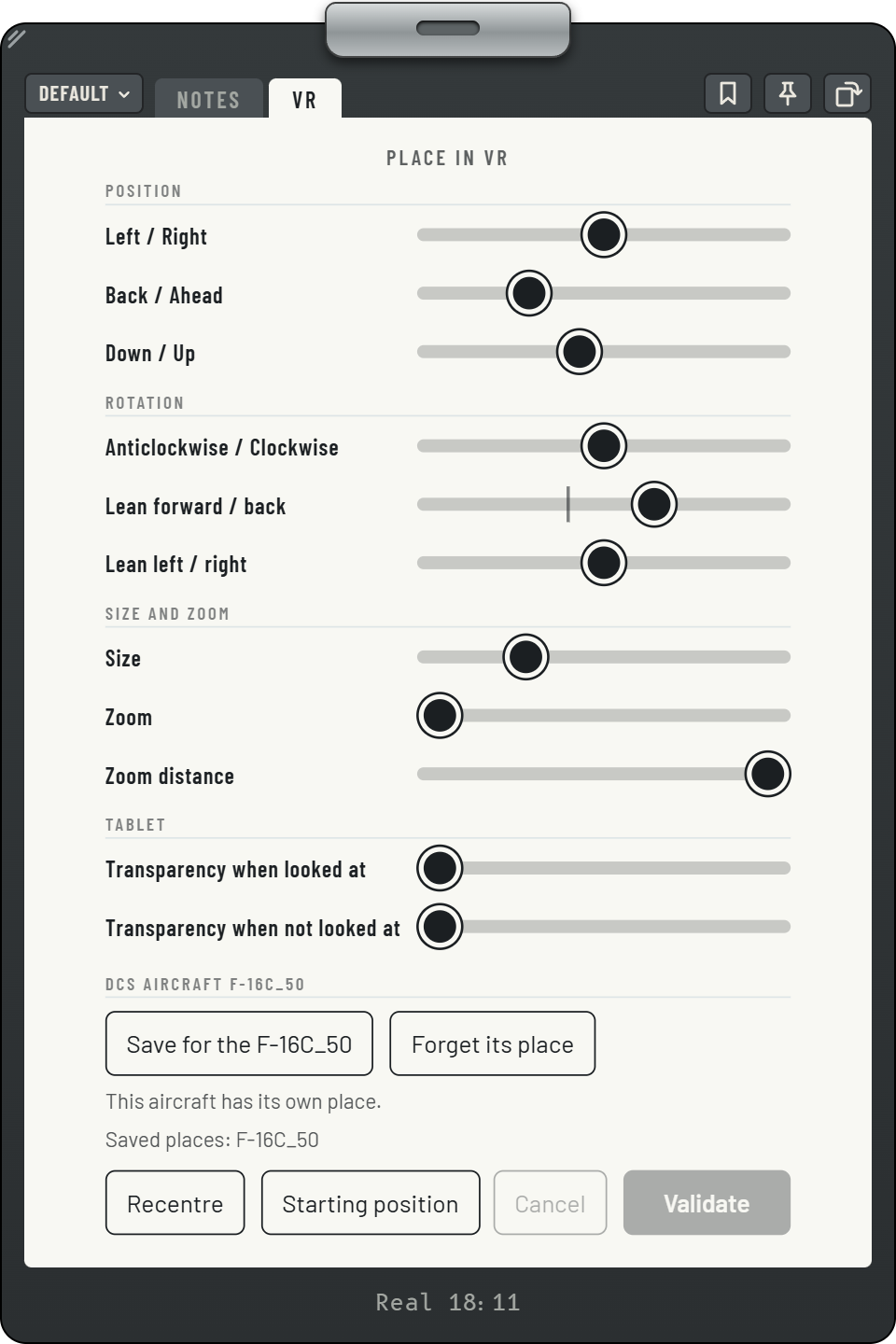
To set the tablet without leaving the game, add the VR tab to your profile: in Tabs, "Add a tab", then "VR". Each slider changes the tablet at once.
- VR tab: it takes its place among the profile's tabs.
- Position: moves the tablet left or right, back or ahead, down or up.
- Rotation: turns and tilts it.
- Size and zoom: its width, how much it grows when you look at it, and how close your head must be.
- Tablet: its transparency when you look at it and when you look away.
- DCS aircraft: in DCS, the line shows the aircraft you are in; "Save for the F-16C_50" keeps the tablet's position and rotation there, and the tablet goes back there each time you fly that aircraft again. "Forget its place" gives it the profile's place again.
- Recentre: puts the tablet back in front of you. In the VR headset, this button does not show: use your "VR: recentre the tablet" command.
- Starting position: puts the tablet back in its starting place.
- Cancel, Validate: Validate keeps the settings in the profile, and the place in the aircraft if it has one; Cancel goes back to the last ones kept.
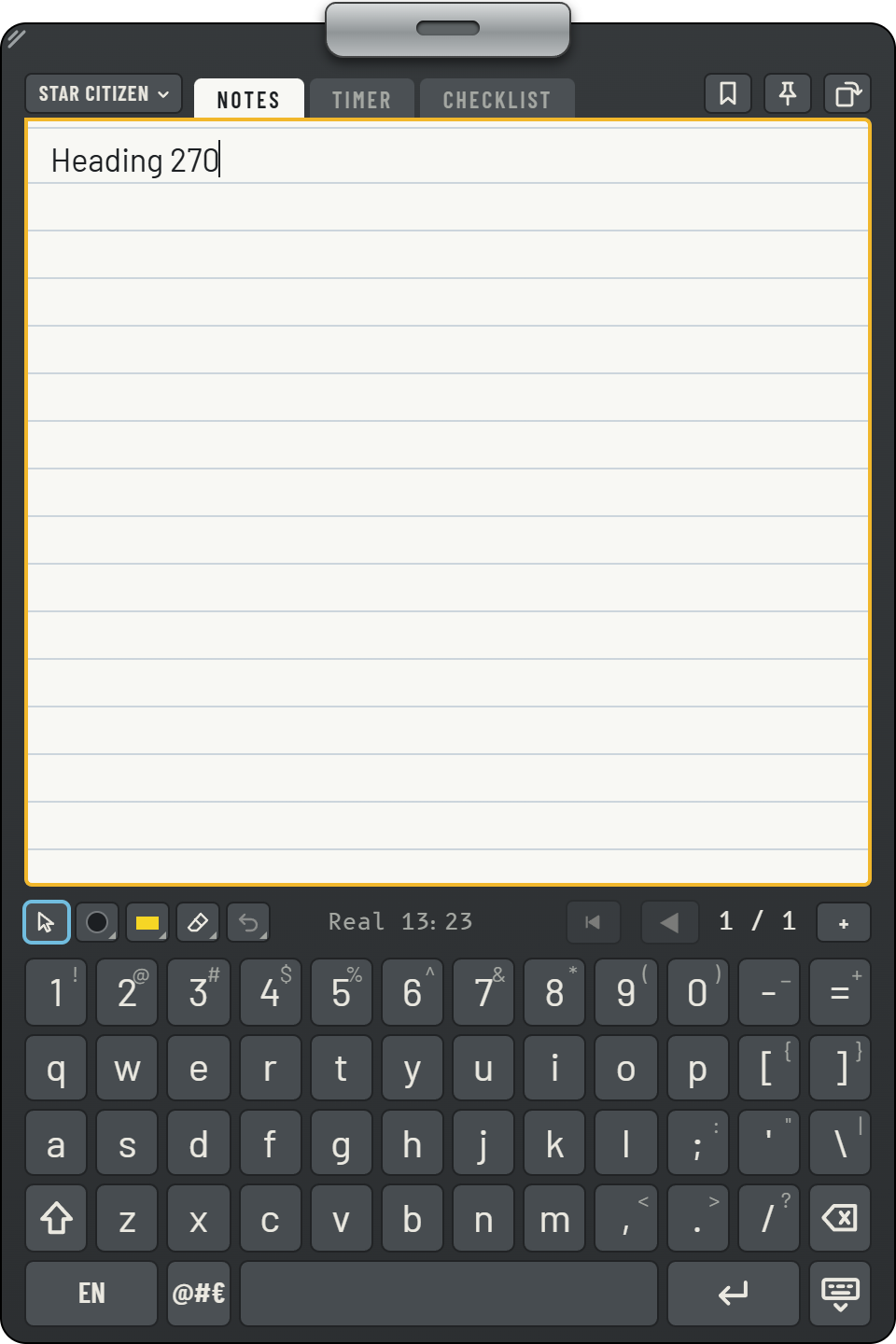
The VR keyboard
In VR, touching a text field with your VR controllers opens a keyboard at the bottom of the tablet: in the notes, a web page or a module. It types without taking the keyboard from the game.
- Text field: touch it to open the keyboard.
- Shift: the next letter in capitals.
- FR-CH or EN: French (Switzerland) or English keyboard; Kneedeck keeps your choice.
- @#€: signs and accents.
- Hide the keyboard: closes it.
The keys answer the pen too. A web page that has its own keyboard for VR keeps it.
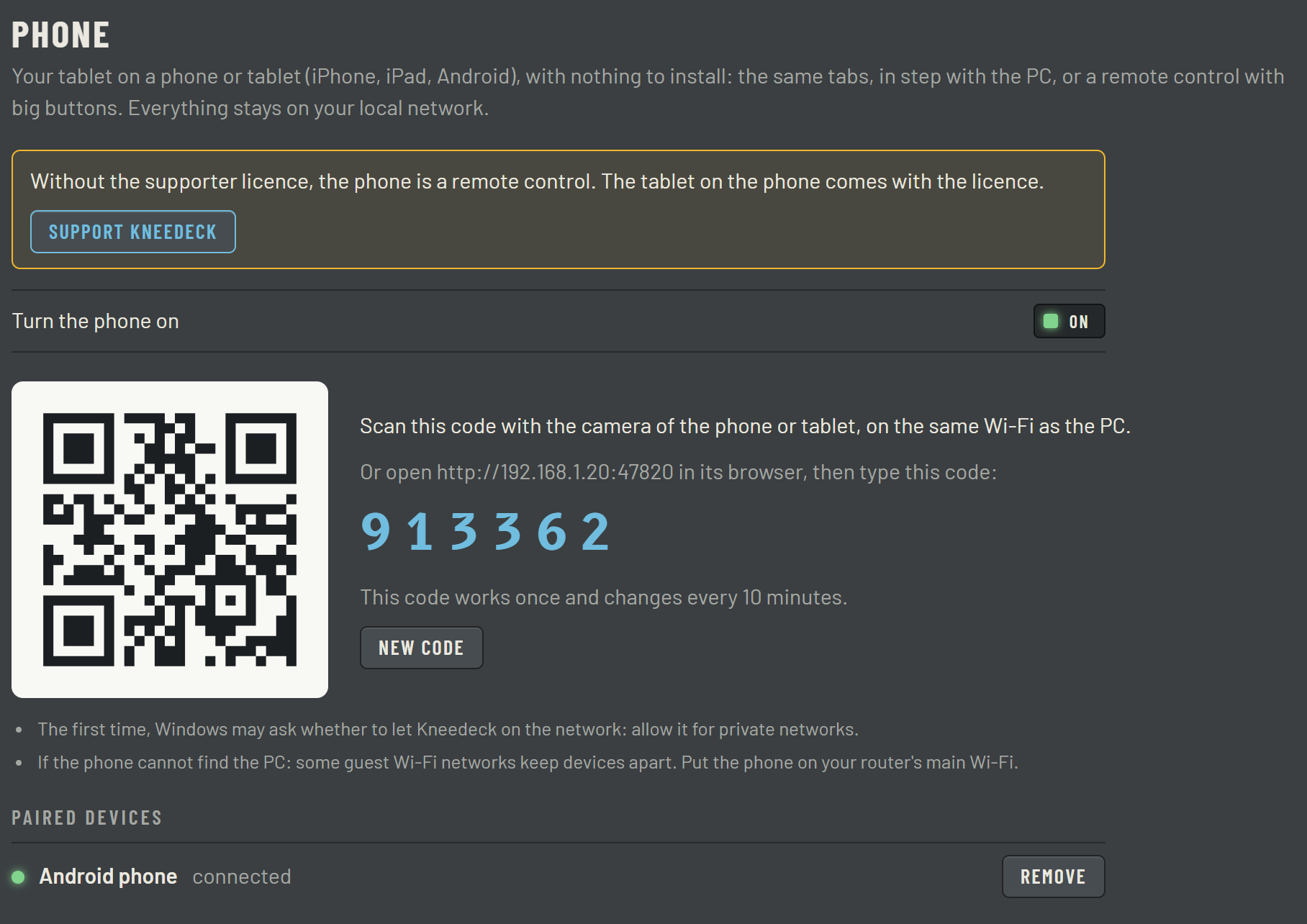
The phone
Your tablet on a phone or a tablet (iPhone, iPad, Android), with nothing to install.
- Turn the phone on: opens the phone's page on your local network.
- QR code: scan it with the phone's camera, on the same Wi-Fi as the PC.
- Code: or open the address in the phone's browser and type this code; it works only once.
- Paired devices: the phones and tablets paired with Kneedeck; "Remove" cuts one off.
Kneedeck also goes on the phone's home screen. On iPhone, in Safari: "Share", then "Add to Home Screen". On Android, in Chrome's menu: "Add to Home screen".
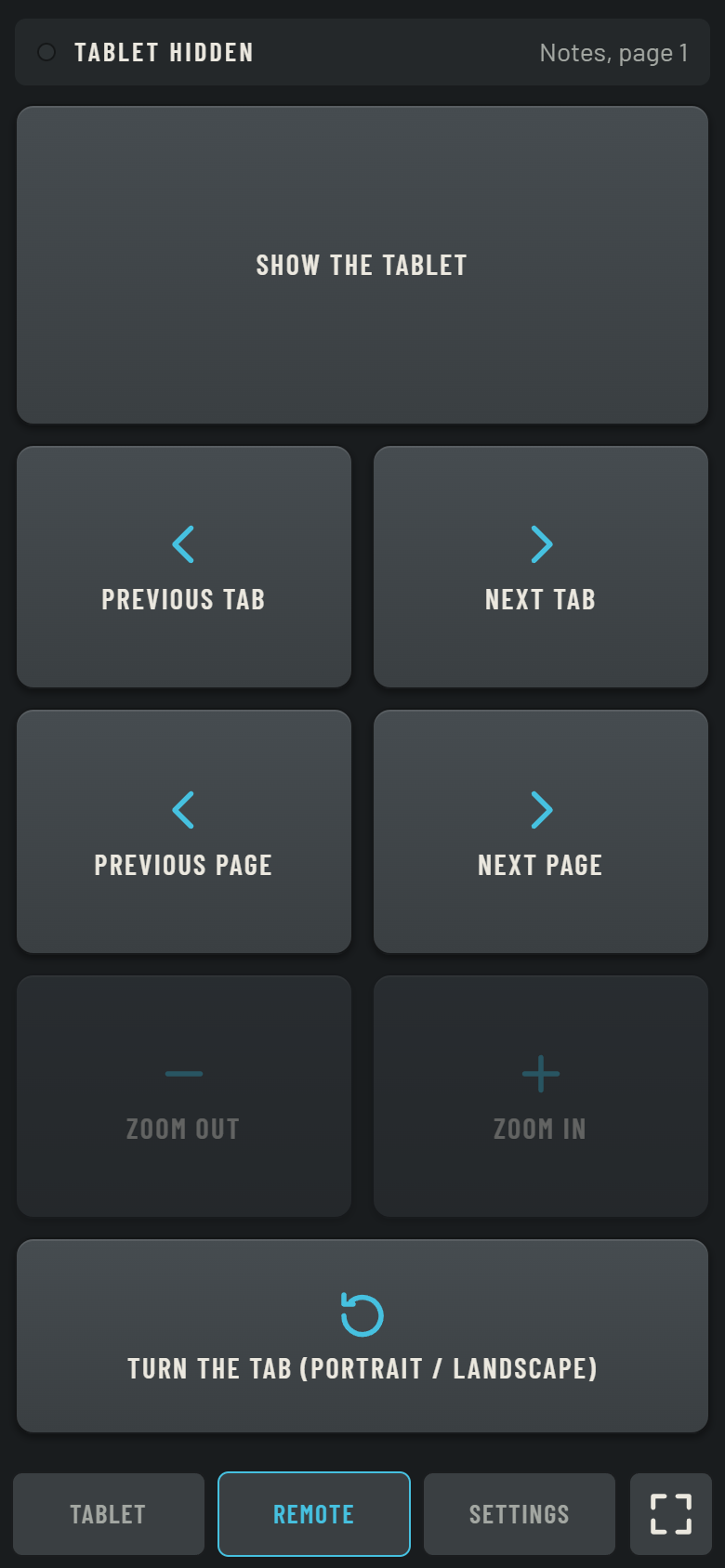
The remote
Without the supporter licence, the phone is a remote control. With it, the Tablet mode also shows the same tabs as the tablet, in step with the PC.
- At the top: the tablet shown or hidden, and the tab shown.
- Show the tablet: shows or hides it on the PC.
- Previous tab, next tab: changes tab.
- Previous page, next page: turns the tab's pages.
- Zoom in, zoom out: the page of the tab shown.
- Turn the tab: portrait or landscape.
- Tablet, Remote, Settings: the tabs on the phone with the supporter licence, the remote, and this device's settings.
- Full screen: Kneedeck takes the whole phone screen.
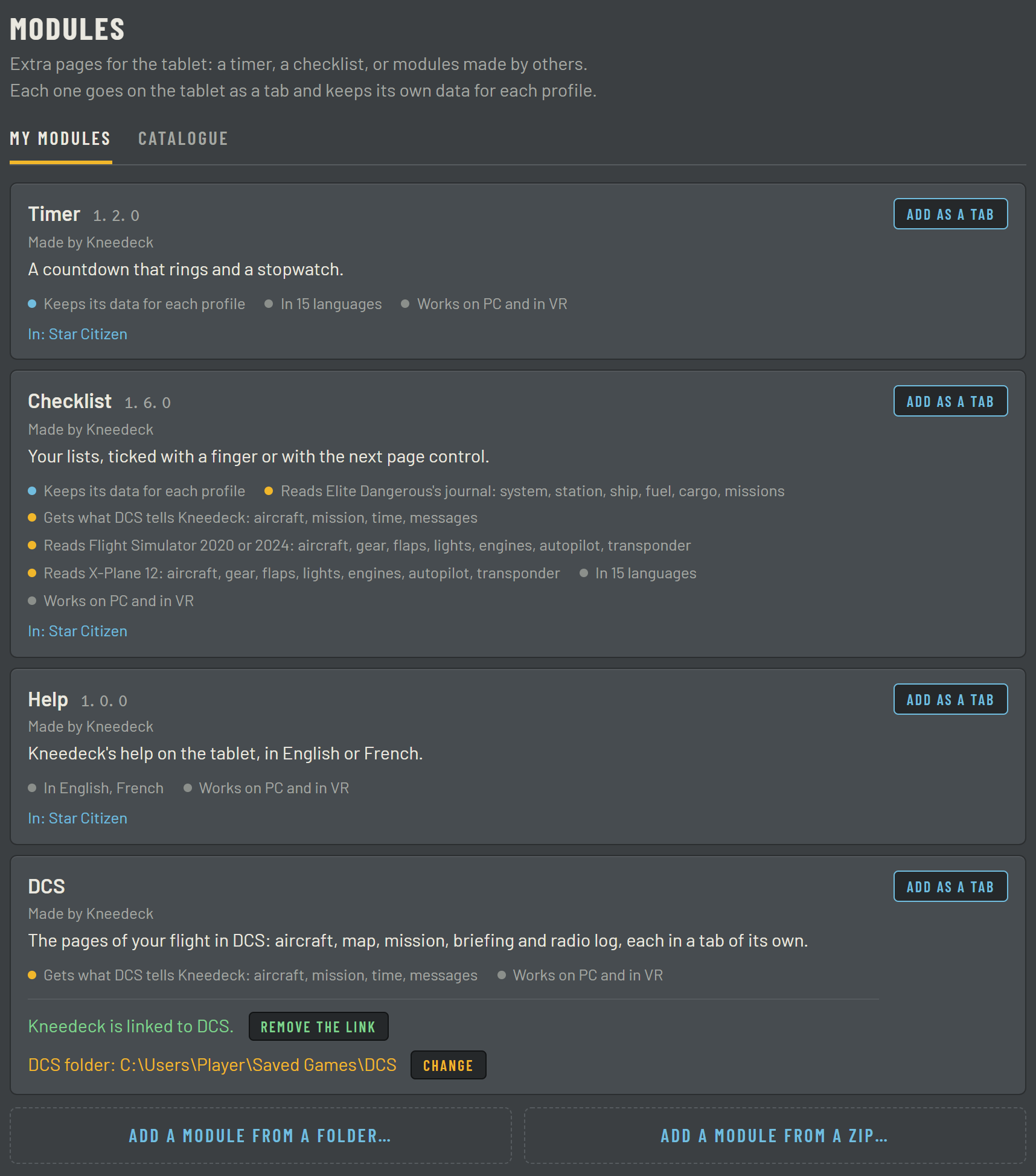
Modules
Extra pages for the tablet: a timer, a checklist, Kneedeck's help, the pages of DCS and Flight Simulator, or modules made by others. Each keeps its data for each profile.
- My modules, Catalogue: the modules you have, and those of other players, added in one click with the supporter licence; each has its stars, given by the players who installed it.
- Add as a tab: puts the module on the tablet of the chosen profile.
- In: the profiles that already have the module.
- DCS: its card, when DCS is on your PC. "Add as a tab" offers its pages (aircraft, map, mission, briefing, radio log): one tab for each page ticked, in the profile shown, leaving those already there as they are.
- Link Kneedeck to DCS: puts Kneedeck's small script in DCS's folder, to follow your flight; once linked, "Remove the link" takes it away, and "Change" picks another folder of DCS.
- Add a module: from a folder or a zip file.
Flight Simulator
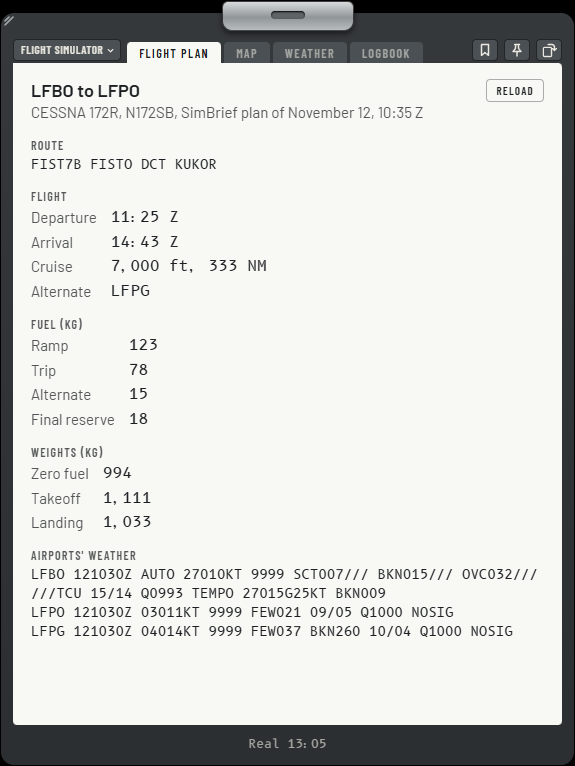
When Flight Simulator is on your PC, it has its card in Modules. "Add as a tab" offers its pages: one tab for each page ticked, in the profile shown. Give your SimBrief pilot number once on the card.
- Flight plan: the last plan you made on SimBrief, with the route, the times, the fuel, the weights and the airports' weather.
- Map: Little Navmap's map, where your aircraft moves. Little Navmap must be running, with its web server: Tools menu, Run Web Server.
- Weather: the wind, the temperature, the QNH, the visibility, the precipitation and the declination where the aircraft is, then the simulator's date and time.
- Logbook: each flight comes here by itself, from takeoff to landing, with the aircraft, the times in UTC, the time in the air and the landing rate. The airports come from the SimBrief plan; without a plan, you type them. "Export" saves it in your Documents for a spreadsheet.
- Reload: fetches the plan you just made again on SimBrief.
- The time: during a flight, the simulator's Zulu time comes next to the real time.
Sharing
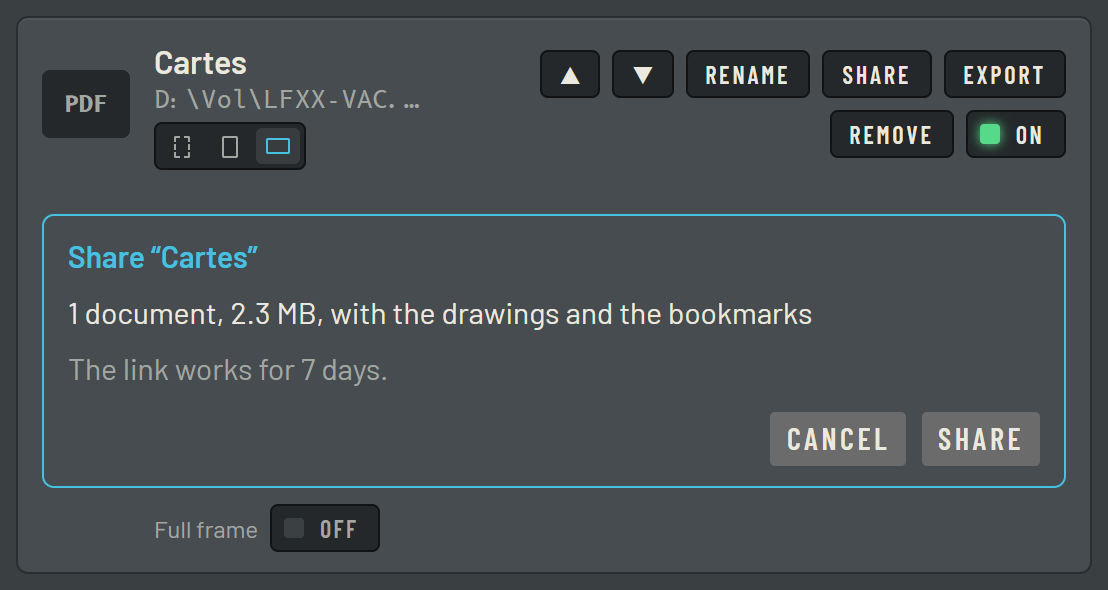
With the supporter licence, you share a tab or a whole profile with other players. Kneedeck copies a link; whoever opens it gets a copy in their Kneedeck.
- Share: on a tab in the Tabs screen, or on the profile to send it whole.
- What goes: the documents, their size, the drawings and the bookmarks; web pages' addresses are shown before it goes.
- 7 days: the link lasts 7 days.
- Share: sends, then copies the link to give to other players.
A page can also be shared live: everyone sees the same page and draws on it at the same time.
Sending and receiving both need the supporter licence. A link you receive opens in Settings, Shares.
A tab added by a site's link ("Add to Kneedeck") is not shared: its address is yours alone. In a shared profile, it stays on your PC.
Settings
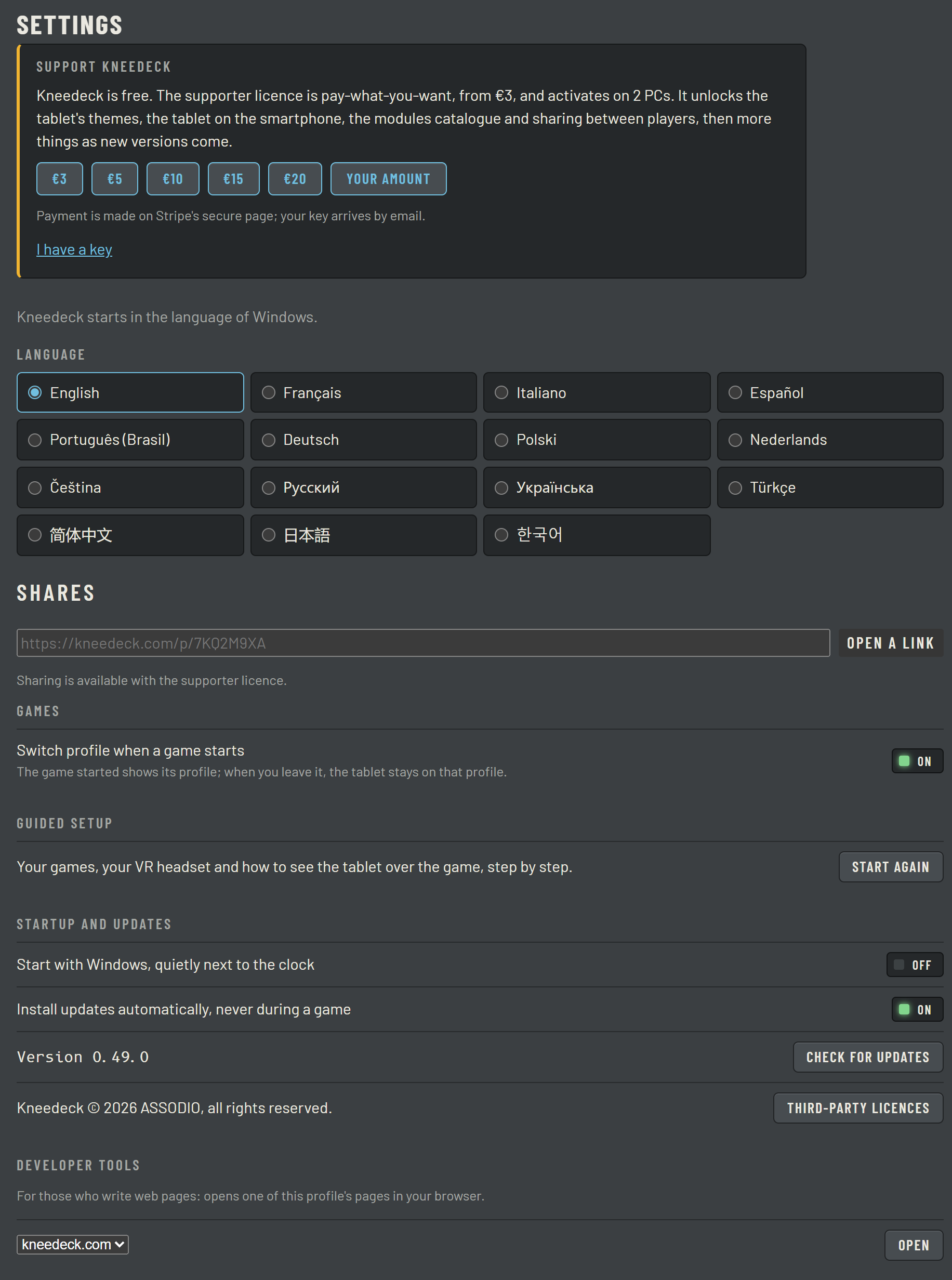
What holds for the whole of Kneedeck, whatever the profile.
- Support Kneedeck: the supporter licence, pay what you want; payment is made on Stripe, your key arrives by email.
- I have a key: to enter your key; the button in the email activates it too.
- Language: Kneedeck's; at first, Windows'.
- Shares: opens a share link you received, and lists the ones you sent.
- Games: "Switch profile when a game starts".
- Guided setup: starts it again.
- Startup and updates: start with Windows, next to the clock, and install updates by itself, never during a game.
- Check for updates: looks for a new version at once.
- Third-party licences: the licences of the programs by other authors that Kneedeck uses.
- Developer tools: for those who write a web page: opens one of the profile's pages in your browser.